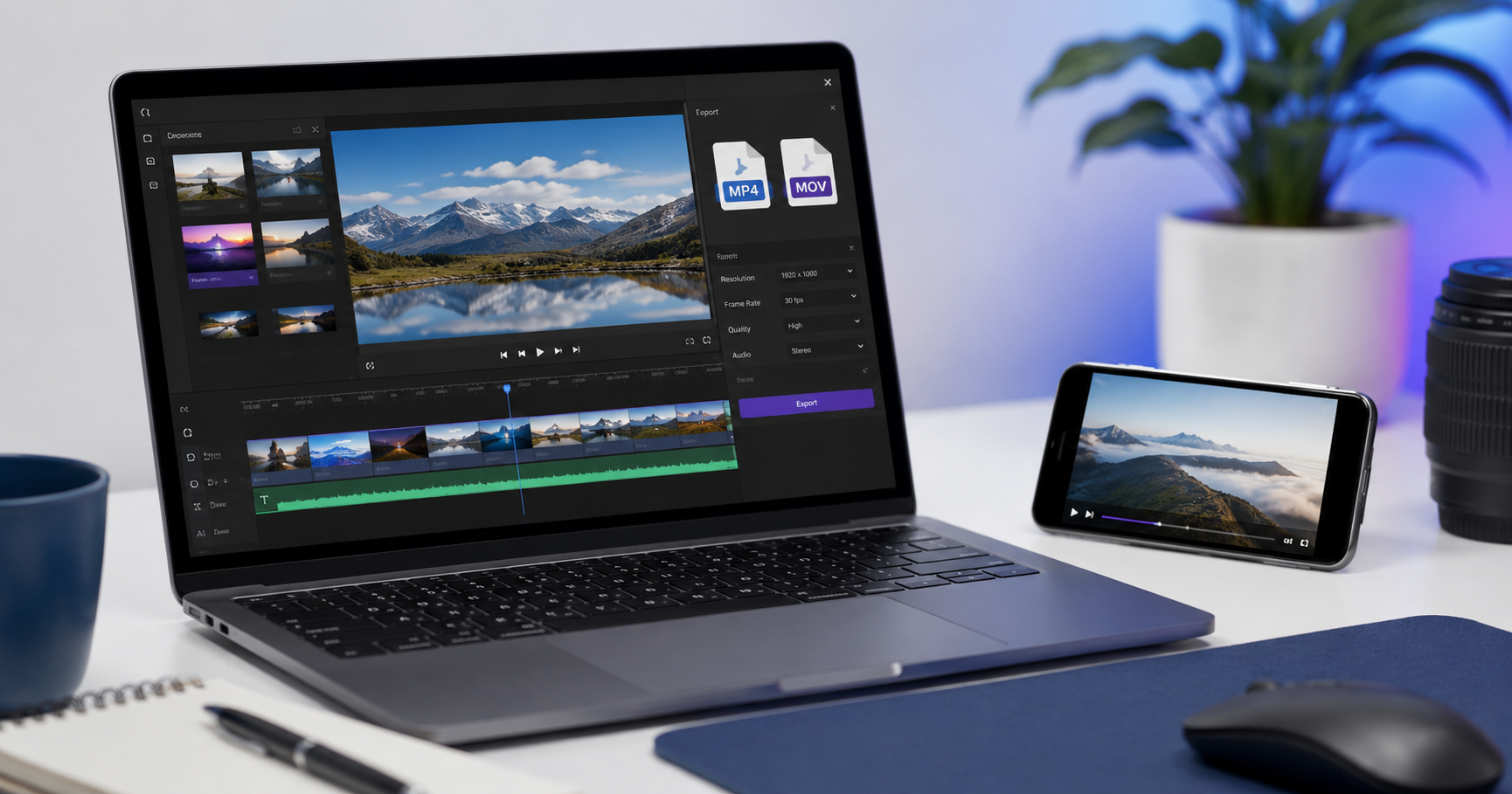
You finish exporting a video and there’s a dropdown full of letters staring back at you. MP4, MOV, MKV, AVI, WebM. Most people just click whatever the software picked by default and move on. Sometimes that works fine. Sometimes the person on the other end can’t open the file, or it opens but looks weirdly compressed, or it’s somehow three times bigger than it should be for a two-minute clip.
None of that is random. Each format does something a little different, and once you know what, picking the right one takes about five seconds.
Container vs codec (this trips up almost everyone)
Quick thing to get out of the way first. A video file is actually two separate things glued together: a container and a codec.
The container is what you see in the file name, .mp4 or .mov. It’s basically the box. The codec is what’s inside that box, the actual method used to squeeze the video down to a manageable size. Here’s the part that confuses people: two files can both say .mp4 and still behave totally differently, because the codec doing the compression underneath isn’t the same.
So when someone says “the video won’t open,” it’s usually not the container’s fault. It’s a codec their device doesn’t recognize, sitting inside a file extension that looks perfectly normal.
MP4: just use this one if you’re not sure
MP4 is the default answer for a reason. It opens on phones, laptops, smart TVs, basically anything with a screen, and it compresses well without wrecking quality. If you’re sending something to a client, uploading to a site, or sending to someone whose setup you have no idea about, MP4 is the one that just works.
MOV: what your Mac probably exported without asking
If you’re on a Mac or shooting on an iPhone, you’ve run into MOV constantly, whether you meant to or not. It’s Apple’s native format and it tends to hold onto quality a little better than a standard MP4, which is part of why editors like working with it mid-project.
The downside shows up the moment it leaves Apple’s ecosystem. Some Windows machines handle MOV fine, others choke on it depending on which codec got used inside. If you’re sending a final file to someone outside Apple’s world, convert it to MP4 first and save everyone the guessing.
MKV: powerful, but don’t send this to a client
MKV can hold almost anything, multiple audio tracks, subtitles, very high bitrate video, all crammed into one file. People who care about squeezing out every bit of quality for an archive tend to gravitate toward it.
For sending something to another person, it usually causes more headaches than it solves. A lot of phones and basic media players won’t touch it without extra software installed. Keep it for your own archives, not for delivering work.
AVI: the format that refuses to die
AVI has been around since Windows 3.1, somehow. It still shows up sometimes, but it compresses badly compared to anything modern, so you end up with a much bigger file for the same quality. There’s not really a reason to export new video as AVI anymore. If someone hands you an old AVI file, converting it to MP4 will usually shrink it without any visible quality loss.
WebM: for websites, not for sending files
WebM was built for browsers specifically, fast loading, efficient compression for streaming. Unless you’re a developer embedding video directly into a page, there’s not much reason to pick this over MP4 for regular file sharing.
If you’re still not sure
MP4 covers almost every situation. Only reach for something else when you have an actual reason to: MOV if you’re staying inside an all-Apple workflow, MKV for a personal archive, WebM if you’re literally building a website.
Compression settings usually matter more than the format anyway
Here’s the thing that catches people off guard. Two MP4 files can look completely different depending on how they were exported, even with the exact same format. A badly compressed MP4 can genuinely look worse than a well-compressed MOV.
A couple things worth double-checking before you hit export. Match your resolution to your source footage, exporting a 1080p timeline at 4K doesn’t add any real detail, it just bloats the file. And don’t compress something twice. If a video’s already been through one round of compression, running it through another for a different platform stacks quality loss on top of quality loss. Work from the original whenever you still have it.
Honestly, most of this problem goes away with the right delivery method
Here’s the part people don’t think about. A lot of the format headache exists because we’re trying to push video through channels that were never built for it in the first place, messaging apps that silently recompress everything, email attachments capped at 25 MB.
Upload the video to cloud storage instead and the file that arrives is the file you sent. Whatever container and codec you exported stays exactly as-is, nothing gets converted or squeezed down behind your back.
OwlCloudHost works this way. Upload once, share a link, and the person downloads the original, byte for byte, no matter which format you picked. Free plan starts at 1 GB, no card required, with passwords and expiring links included even on that free tier. Paid plans start at $1.99/month if you need more room. owlcloudhost.com.